Editor tour
Top bar
The top editor selector switches between Game World, Sprites, Images, Music, Sounds, Palettes, Dialogue Review and Settings. The toolbar also exposes project actions such as save, Play, build and search. Resource search can open a matching project resource directly.
Left panel and Game World
The Game World navigation contains four resizable sections: Scenes, Prefabs, Scripts and Variables. Expand a section to choose a scene, reusable definition, script or variable. Selecting a scene object changes the context shown by the right inspector. Drag the dividers between sections to adjust how much space each list receives.
The center viewport is the scene workspace for backgrounds, actors, triggers and tile/layer tools. Its floating controls change the active tool and return to the selected scene. The bottom HUD reports the pointer position or scene tile, zoom and snapping; the minimap helps navigate the scene layout, and the resource panel estimates graphics use. These overlays follow the center viewport when the panels are resized.
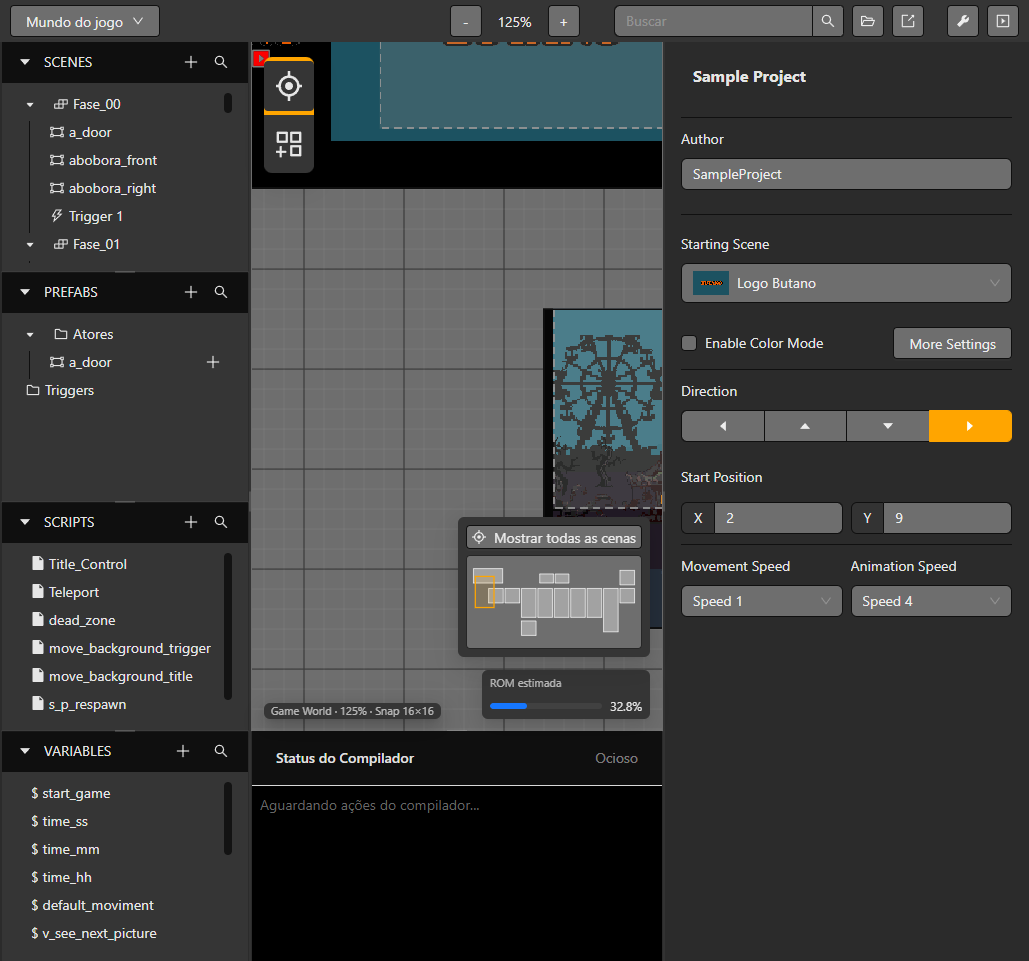
The full Game World view keeps scene navigation, floating tools and viewport overlays visible together.
Right panel
The right panel displays the properties for the selected scene, actor, trigger, layer or resource. When multiple scenes are selected it can show group operations instead of a single-object inspector.
Resource editors
Palettes, images, music, sound effects and sprites have dedicated editors. Sprites expose animation states, source tiles, composed frames and sprite settings; music and sound editors provide format-specific playback and editing controls. See Sprite animation editor, Music editor and Sound effects.
Dialogue review
Dialogue Review is a full-width table rather than a resource-list editor. It collects dialogue commands, supports search and opens the owning context. See Dialogue and choices.
Resizing and shortcuts
Panels separated by a splitter can be resized by dragging the divider. The workspace restores its saved layout on startup. The exact actions available depend on the active editor; use the visible toolbar and tooltips for editor-specific commands.
For event editing, see Organize events. For project fonts, see UI and fonts.
Settings and runtime preview
Settings includes project options, Autotiles, fades, palette slots, Controls, UI Elements/fonts and Demo Configuration. Controls places Input Map and Input Groups side by side; a type selector switches between independent scene-type mappings. See Controls.
The integrated emulator has configurable keyboard/controller mappings, filters, menu visibility and FPS/CPU overlays. These are demo/emulator settings, separate from the game's physical/logical input groups. CPU and FPS indicators appear only after measurements exist. Open the Runtime Monitor for detailed resource data.
Linked actor and trigger prefab events are locked unless shared editing is enabled or their events have been detached. Deleted scripts and variables are not shown in the hierarchy or selectors.